Installing a Windows compatibility tool
Windows applications can be run on Linux with PortProton, installed from the Flathub repository using the Flatpak package manager.
Installing Flatpak
On Ubuntu 18.10 or later, run:
sudo apt update && sudo apt upgrade -y
sudo apt install flatpak
Installing the GNOME Software plugin
To add Flatpak support to GNOME Software:
sudo apt install gnome-software-plugin-flatpak
Adding the Flathub repository
flatpak remote-add --if-not-exists flathub https://dl.flathub.org/repo/flathub.flatpakrepo
Restart required
Restart the system after adding the repository so that the changes take effect.
Installing PortProton
PortProton can be installed either from the terminal or through GNOME Software.
From the terminal:
flatpak install flathub ru.linux_gaming.PortProton
Start it with:
flatpak run ru.linux_gaming.PortProton
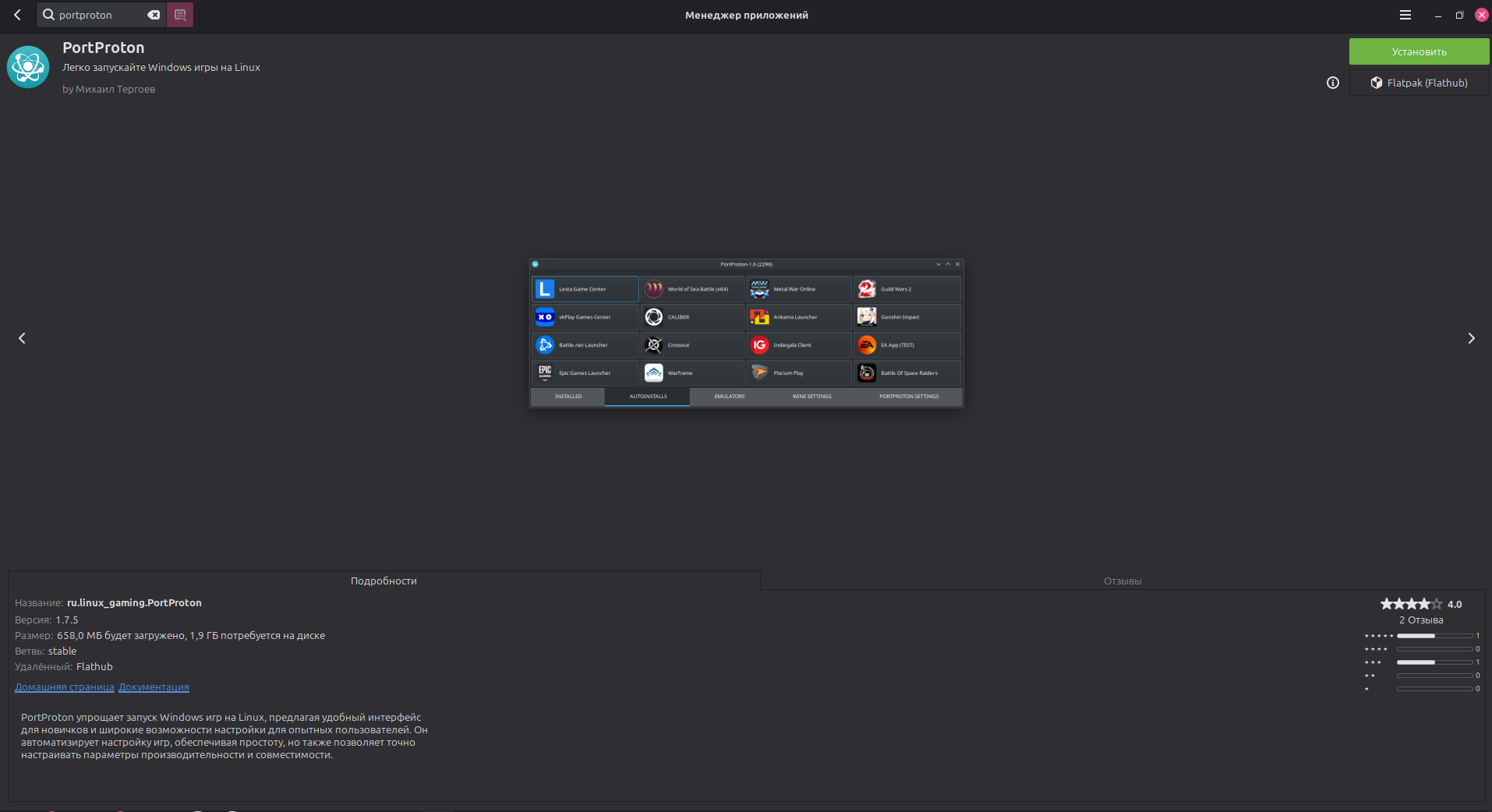
From GNOME Software:
After Flathub has been added, PortProton is also available in GNOME Software.
Initial setup
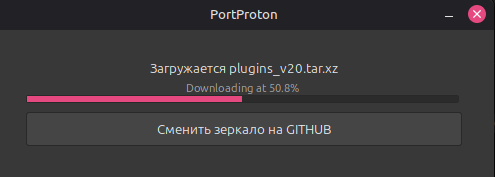
On first launch, PortProton automatically installs the required Wine dependencies and helper components. This process takes several minutes.
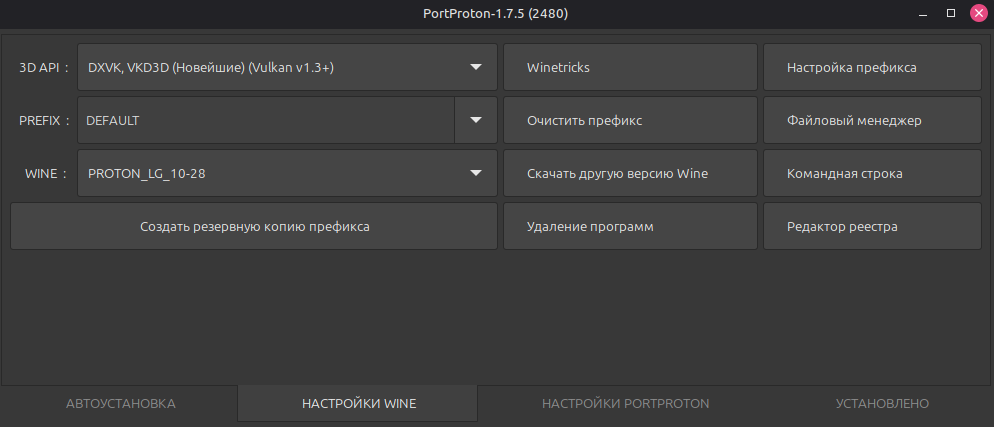
After initialization, the application's main functions become available, including:
- Wine settings — manage the Wine environment;
- Windows command prompt — run
cmd.exeinside Wine; - File manager — access the virtual Windows file system.
Next step
After installing PortProton, proceed to Installing SunriseWorkbench.