Applications
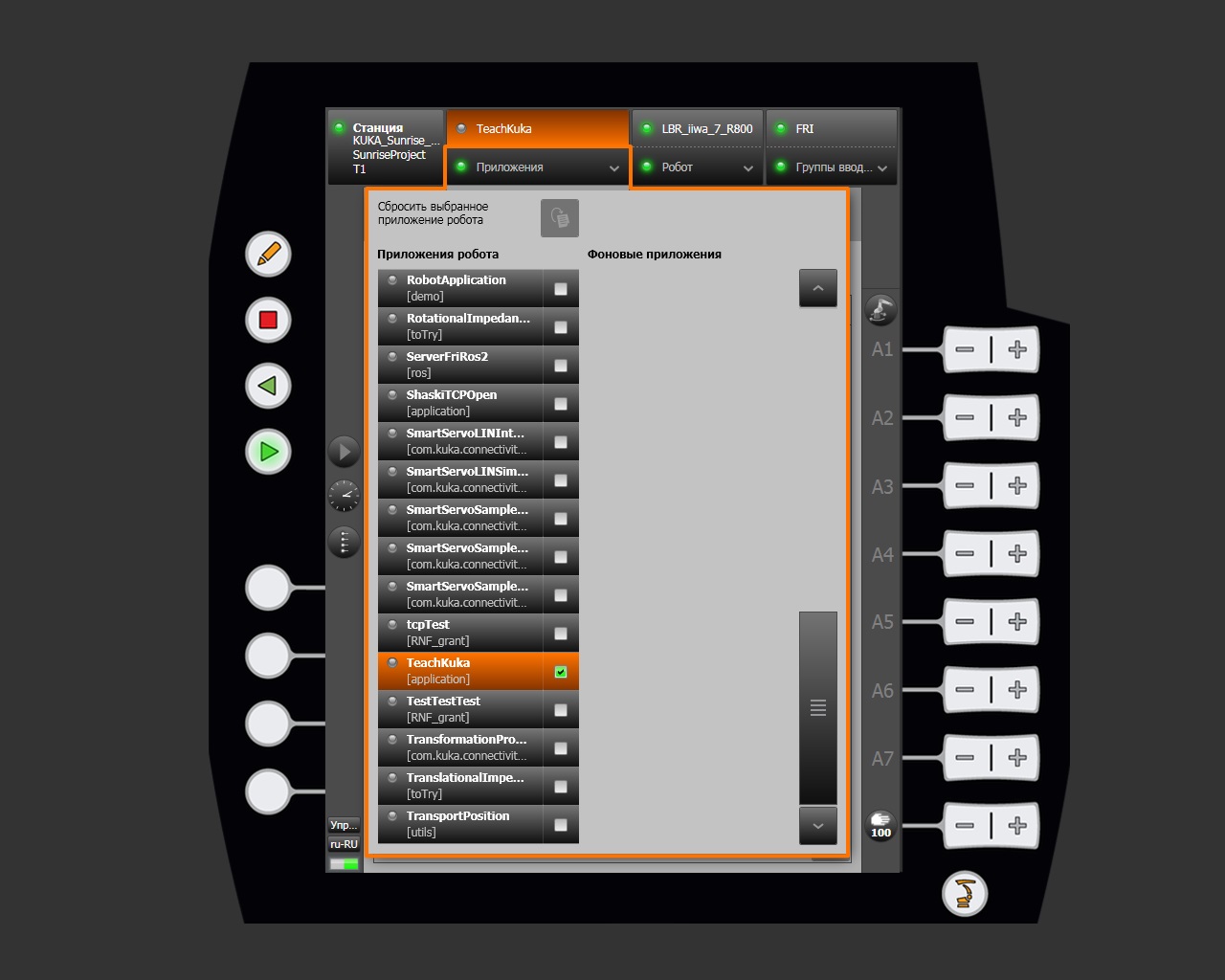
The Applications section lets you select and control programs developed in SunriseWorkbench and deployed to the controller. Open it with the Applications button in the smartHMI navigation bar.
Application list
The application selection page has two columns:
| Column | Description |
|---|---|
| Robot applications | Control programs started manually by the operator |
| Background applications | Programs that run automatically as a backgroundTask |
Each list entry contains:
- a status indicator — the colored dot to the left of the name;
- the application name — the Java class name;
- the package — namespace or category such as
[application],[ros], or[demo]; - a checkbox — used to select or deactivate the application.
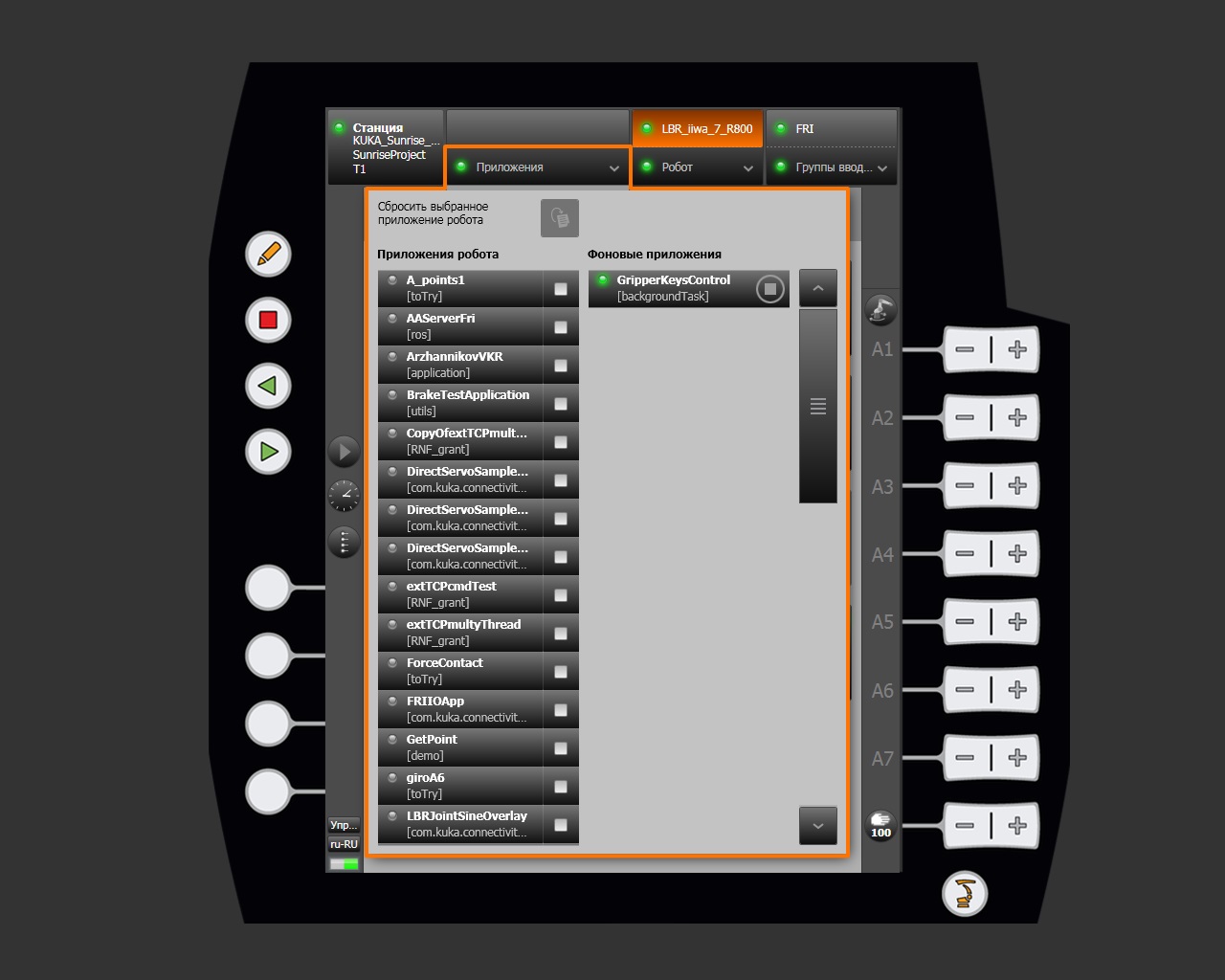
The Reset selected robot application button (hand icon) clears the active application selection without stopping it. Running background applications are shown with a green dot and a Stop button.
Selecting and activating an application
Click an application name in the list to select it. The selected application is highlighted in orange, its checkbox is selected (✓), and its name appears in the smartHMI navigation bar. The system automatically opens the Application control page, which shows the current program state and execution log.
Application states
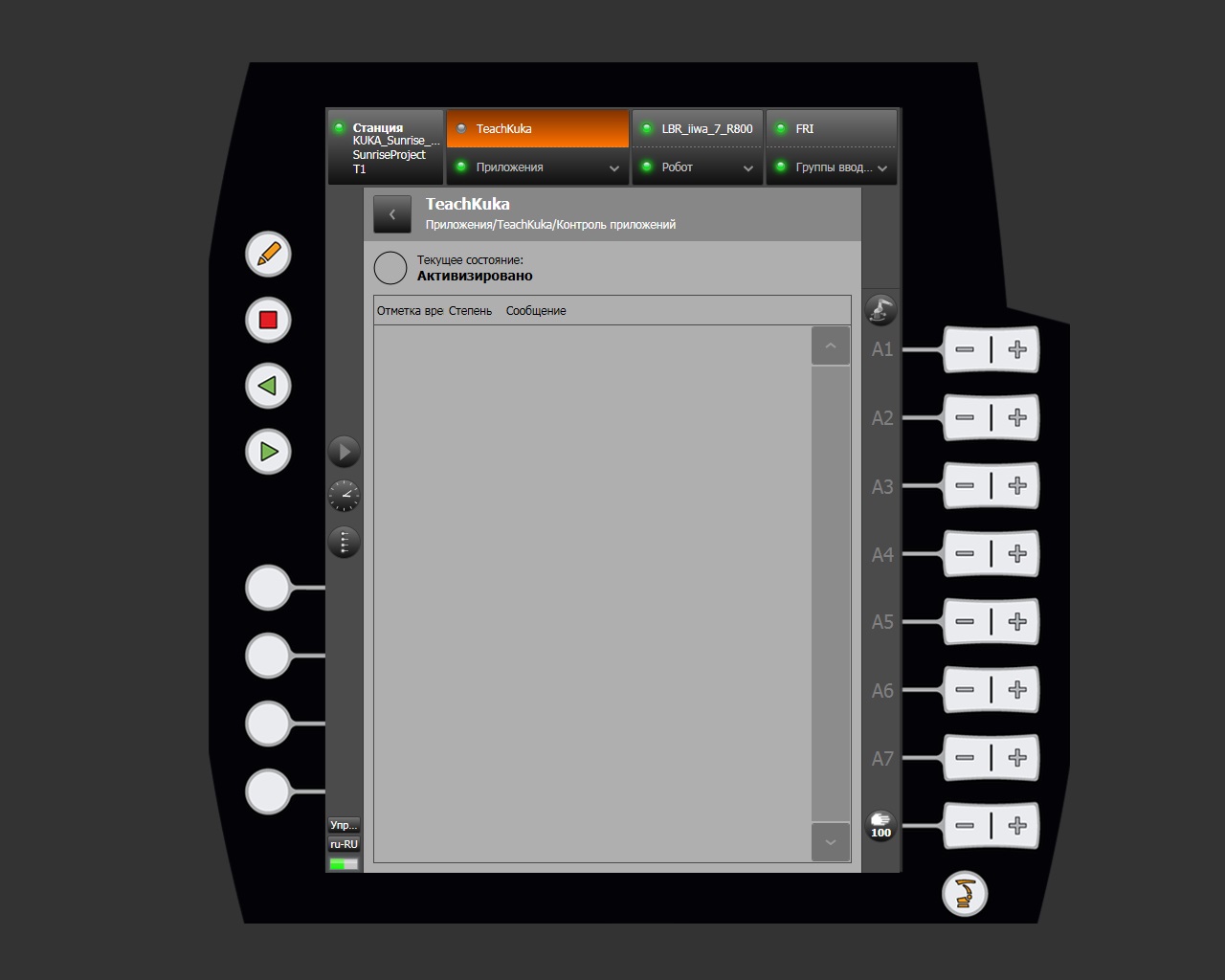
Activated
A gray circular indicator means that the application has been selected and loaded into the controller but has not started yet.
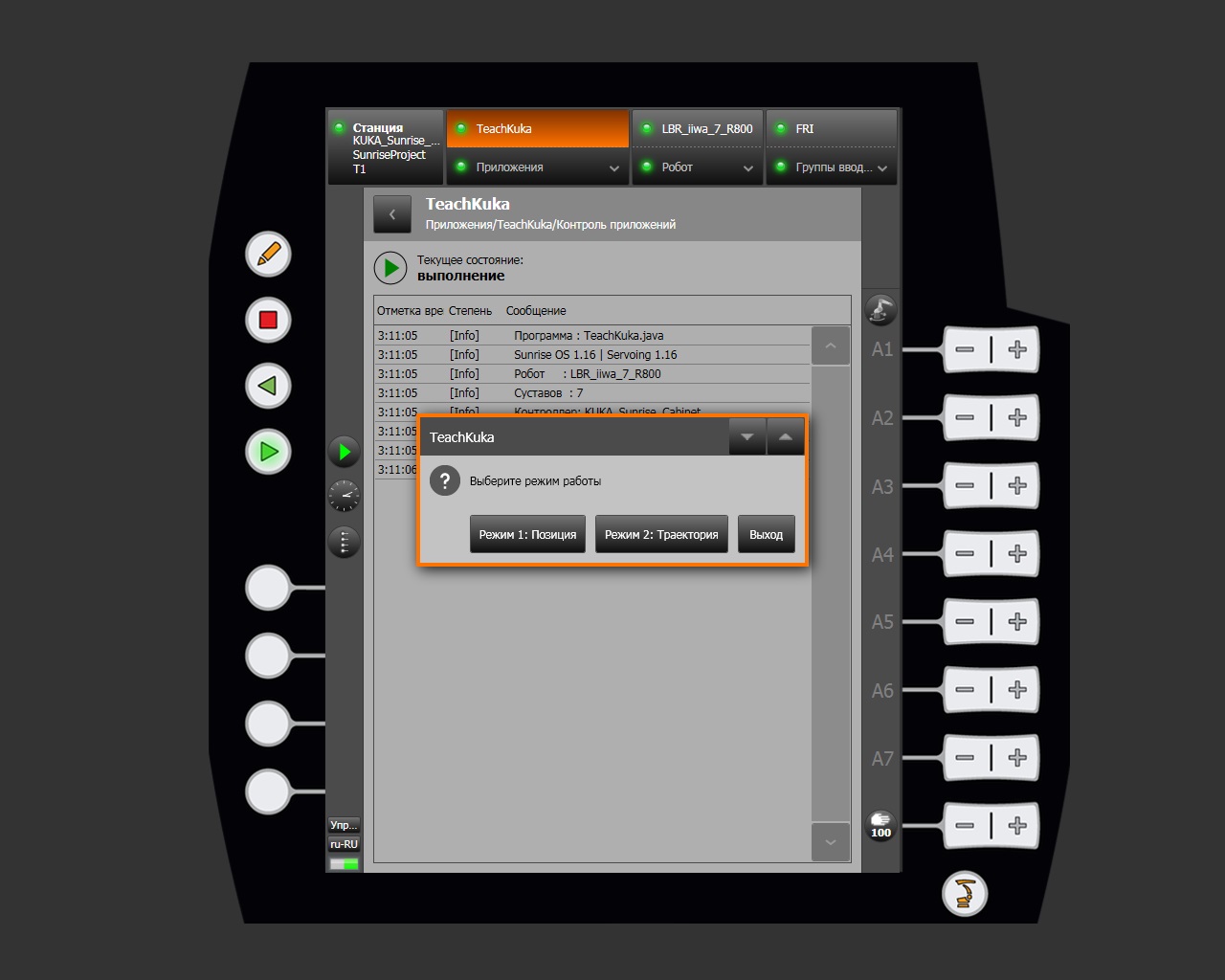
Running
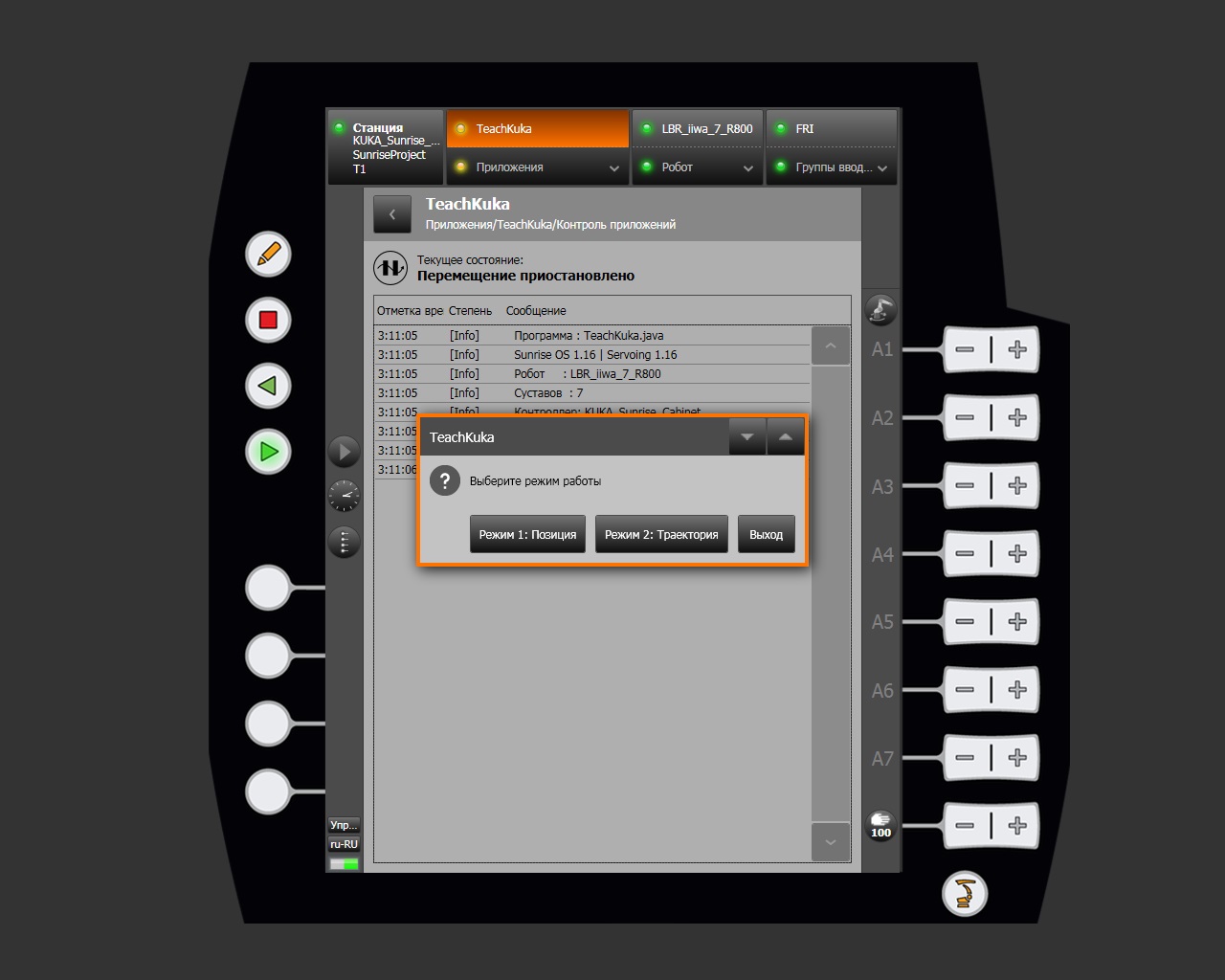
A green play indicator means that the program is running. Events defined by the developer appear in the log in real time. If the program requires operator interaction, a selection dialog appears over the log.
Motion paused
A yellow pause indicator means that execution has been interrupted. Resume the program in the same way it was started.
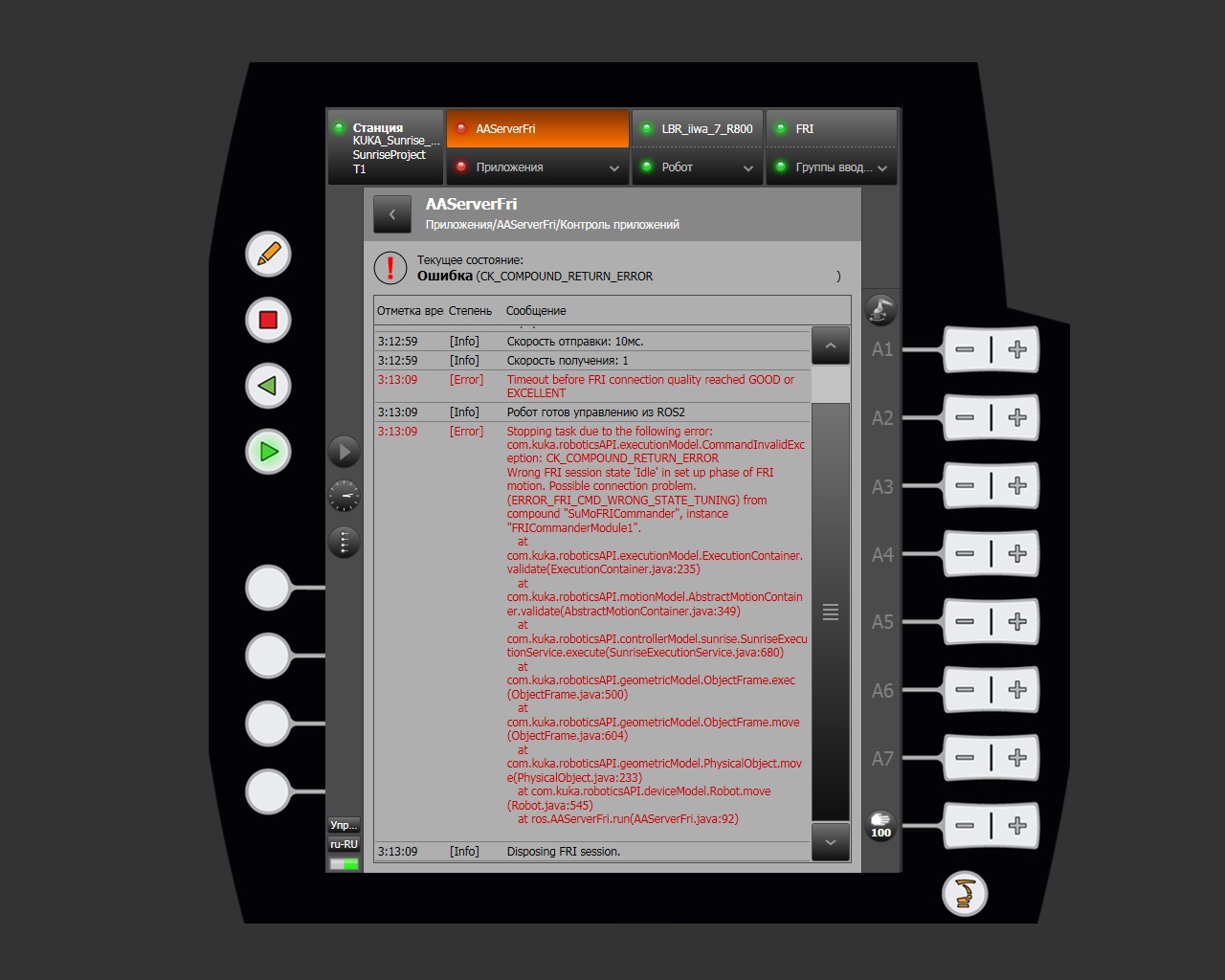
Error
A red indicator means that an unhandled exception occurred during execution. The status line displays the error code. Logic errors must be corrected in SunriseWorkbench.
Deactivating an application
Open Applications, find the active application (orange highlight and selected checkbox), and click its checkbox to deactivate it.